
Organization
Manage your organization profile, branding, and members.
The Organization page is where admins manage the organization: its profile and branding, its members, and pending invites. If your organization is a parent (root) org, you also see its child organizations and a read-only tenant tab.
For what an organization is and how it isolates your data, see Core concepts. An organization is identified by a plain GUID, with no prefix.
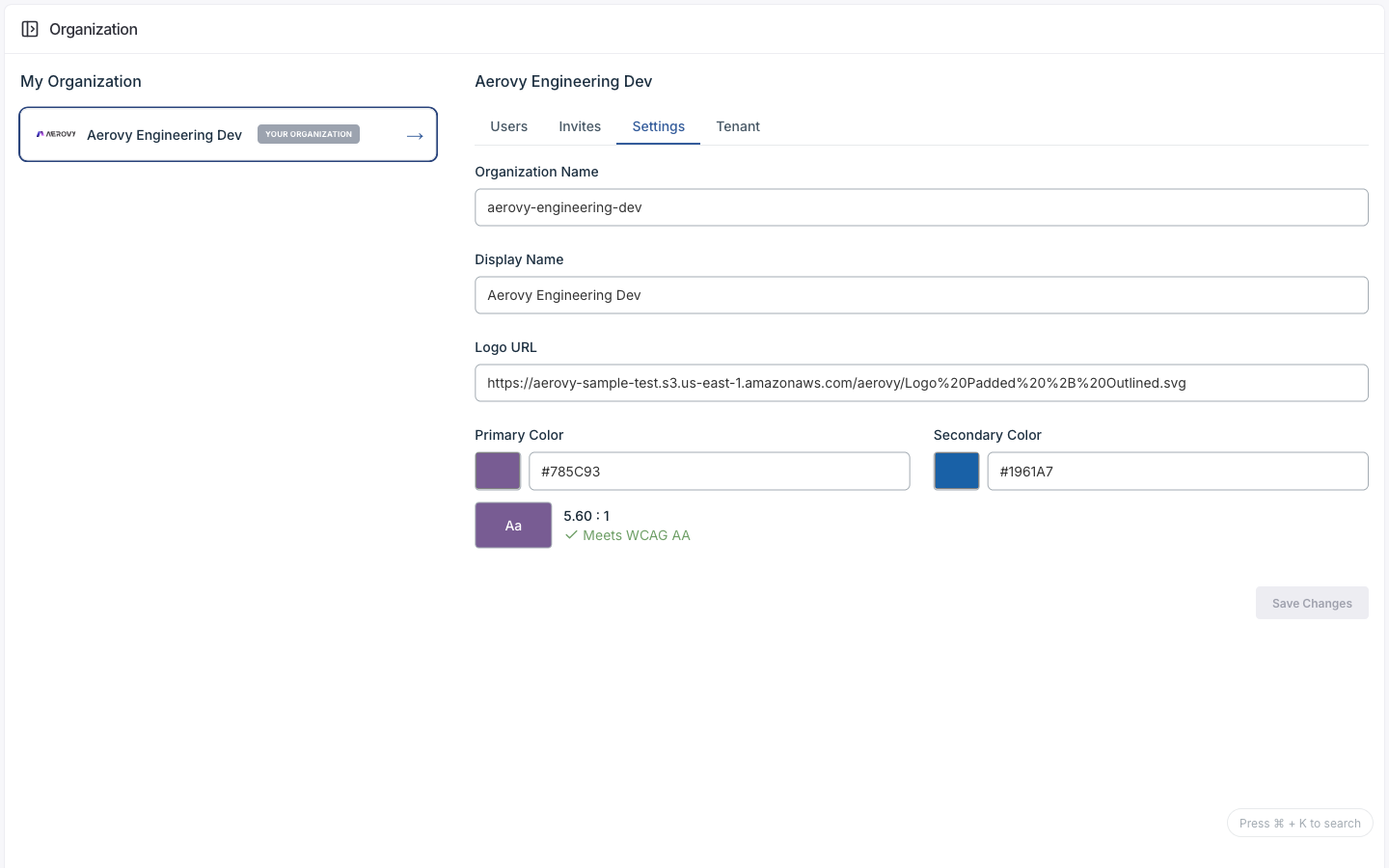
Tabs
| Tab | Purpose |
|---|---|
| Settings | Edit the org profile and branding |
| Users | View and manage members |
| Invites | View and send invitations |
| Tenant | Read-only tenant info (root org only) |
Settings
| Field | Type | Notes |
|---|---|---|
| Organization name | string | The org's name |
| Display name | string | Shown in the UI |
| Logo URL | URL | A link to a hosted logo (no file upload) |
| Primary color | hex | Brand color, checked for contrast |
| Secondary color | hex | Brand color |
Branding drives the app's colors and logo. The brand colors are checked against WCAG contrast.
Members and invites
Users lists members. Search by name or email. Editing a member updates their email, first name, and last name, and assigns roles. You can also remove a member.
Invites lists pending invitations and lets you invite a new member.
| Field | Type | Required |
|---|---|---|
| Invitee email | Yes | |
| Roles | multi-select | Yes (at least one) |
A successful invite produces an invitation URL you can copy. Each invite shows its email, link, created date, and expiry.
Roles
Roles aren't a fixed list. They come from your identity provider, each with a name and a description, and you assign them at invite time or per member.
States
The org model carries isRoot (whether it's a parent org) and isSoftDeleted. The full org
tree and child-org management appear only for root orgs; other users see just their own org.